

Shared21
Well-known member
- Joined
- Nov 1, 2010
- Messages
- 202
- Thread Author
- #1
I've heard many reasons (excuses) for why people cannot go on the server. Some say life, some say its too boring, but what really annoys me is that they cannot (or wont) downgrade.
Well here's a solution:
Minecraft .jar Switcher
This program allows you to easily switch between the .jar's you use so you can switch to a higher version without any problems at all.
TUTORIAL:
Step 1:
Download the program and place it anywhere thats easily accessable.
Step 2:
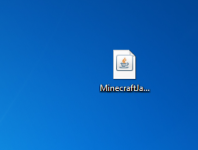
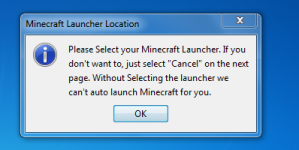
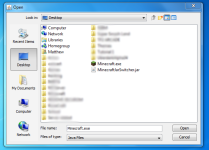
Open the .jar file by double-clicking, you should receive a prompt to find your Minecraft Launcher not your .jar
Step 3:
You should get a prompt if this is your first time running the program.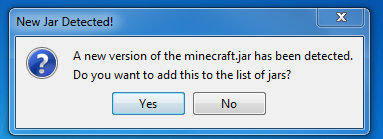
Press "YES". And a new prompt will appear to input information.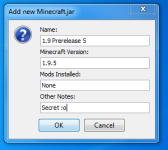
Put in information so you know which .jar you are using. And press "Ok" once youre done.
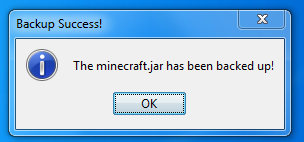 You should get this prompt. Press "Ok" again.
Step 4:
You will now be in the .jar menu where you can switch to your other .jar files.
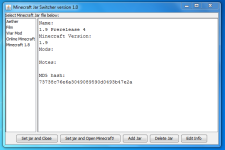
ADDING NEW .Jars
Step 1: Navigate to your .minecraft folder (really not that hard.) by pressing (windows logo) + R on your keyboard and typing in "%appdata%" without the quotes. Then go into .minecraft folder and then the .bin folder. FOR MACS: Finder > Go > Go To Folder > type ~/Library/Application Support/minecraft
Step 2: Download any version of minecraft and replace the minecraft.jar file with the one you want to add.
Step 3: Open Minecraft .Jar switcher and continue from Step 3.
Changing .Jars:
Step 1: Assuming you have nothing new to add. Open Minecraft Jar Switcher and you should encounter the .jar menu.
Step 2: Select the .jar from the left Bar and press "Set jar and close" OR "Set Jar and Open Minecraft"
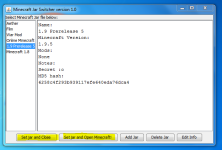
Step 3: If you selected option 1, the program will close and you can now open minecraft to play with your new .jar.
If you selected option 2, the program will close and minecraft will automagically open with the new .jar.
If you have any problems with this tutorial, reply in the thread and i will try to help you out on this. Any suggestions, opinions are welcome.
Well here's a solution:
Minecraft .jar Switcher
This program allows you to easily switch between the .jar's you use so you can switch to a higher version without any problems at all.
TUTORIAL:
Step 1:
Download the program and place it anywhere thats easily accessable.
Step 2:
Open the .jar file by double-clicking, you should receive a prompt to find your Minecraft Launcher not your .jar
Step 3:
You should get a prompt if this is your first time running the program.
Press "YES". And a new prompt will appear to input information.
Put in information so you know which .jar you are using. And press "Ok" once youre done.
You should get this prompt. Press "Ok" again.Step 4:
You will now be in the .jar menu where you can switch to your other .jar files.
ADDING NEW .Jars
Step 1: Navigate to your .minecraft folder (really not that hard.) by pressing (windows logo) + R on your keyboard and typing in "%appdata%" without the quotes. Then go into .minecraft folder and then the .bin folder. FOR MACS: Finder > Go > Go To Folder > type ~/Library/Application Support/minecraft
Step 2: Download any version of minecraft and replace the minecraft.jar file with the one you want to add.
Step 3: Open Minecraft .Jar switcher and continue from Step 3.
Changing .Jars:
Step 1: Assuming you have nothing new to add. Open Minecraft Jar Switcher and you should encounter the .jar menu.
Step 2: Select the .jar from the left Bar and press "Set jar and close" OR "Set Jar and Open Minecraft"
Step 3: If you selected option 1, the program will close and you can now open minecraft to play with your new .jar.
If you selected option 2, the program will close and minecraft will automagically open with the new .jar.
If you have any problems with this tutorial, reply in the thread and i will try to help you out on this. Any suggestions, opinions are welcome.
Last edited:


 No excuses!